
I have a love-hate relationship with Destiny 2 that could fill an engram. I adore the gunplay, the raids, and the fashion. I do not adore getting booted to the title screen by an error code named after a primate with a grudge. If you are reading this, you probably just saw Baboon. Welcome to the club. We meet in orbit. Bring snacks. 🍿
Baboon is the disconnection error that rips you out of activities and dumps you back at the title screen. In 2026, it is still the same digital gremlin. Bungie's advice remains simple: go wired if possible, because packet loss or disconnections between your home network and Bungie can trigger it. Baboon does not care that you were about to finish a Grandmaster Nightfall. It does not care that your Fireteam is screaming. It just yanks the cord like a toddler who found the router.
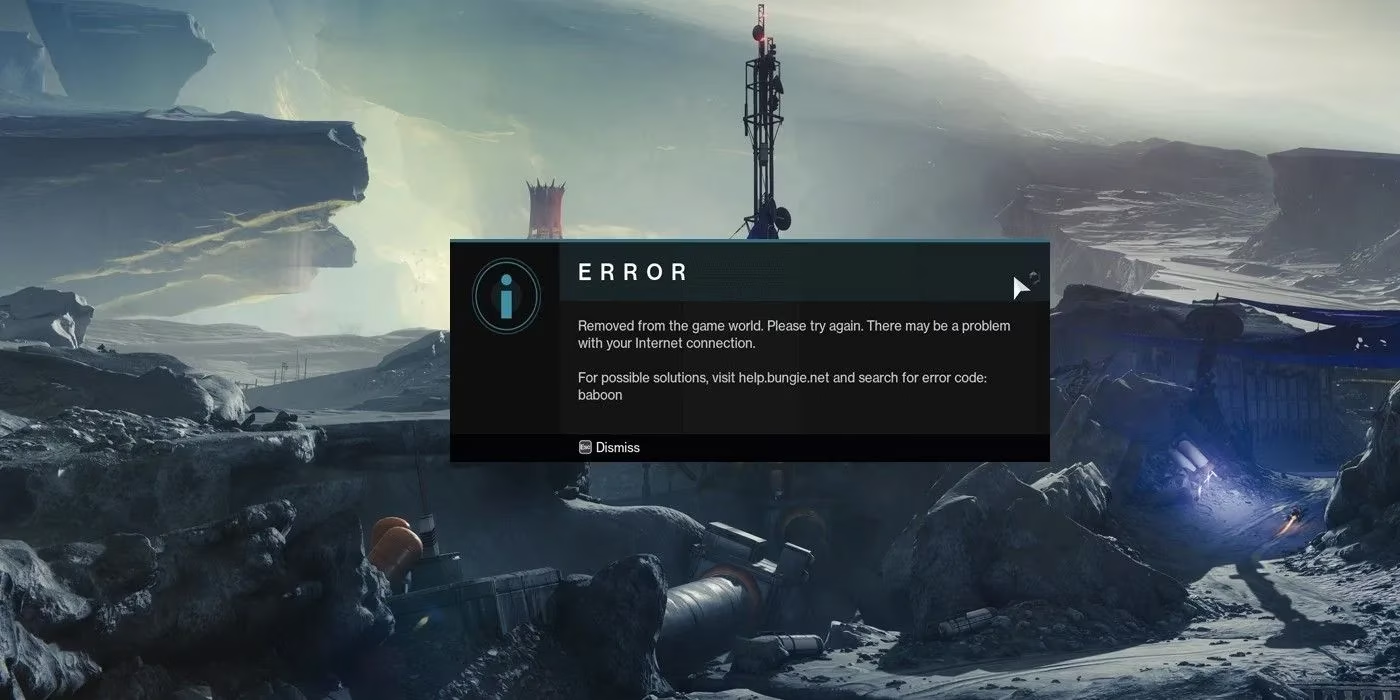
Why does Baboon keep happening? Live service games are complicated. Servers get crowded during peak hours, big updates, or when everyone returns for a new episode. Your home network can be congested too. Maybe your roommate is downloading a 200 GB patch, your smart fridge is updating, and your neighbor is borrowing Wi-Fi. The result is packet loss. Think of it like mailing postcards to Bungie via a flock of drunken pigeons. Some arrive. Some do not. The pigeons are not sorry. 🕊️
Here is my field-tested, Guardian-approved list. I cannot promise it will banish Baboon forever, because Baboon is less a bug and more a seasonal weather pattern. But these fixes are worth trying.
| Solution | What to do | Why it helps |
|---|---|---|
| Force close the game | Close Destiny 2 fully on PC, Xbox, or PlayStation, then relaunch. | Clears temporary data-transfer hiccups. |
| Fix network congestion | Disconnect unused devices, pause downloads, and avoid public Wi-Fi. | Frees up your router and reduces packet loss. |
| Avoid high server congestion | Play off-peak or avoid launch day. | High traffic can destabilize servers and kick players. |
| Verify game file integrity | On Steam, right-click Destiny 2 in your Library, choose Properties, open Local Files, and click Verify Integrity. | Repairs damaged or missing files. |
| Allow Destiny 2 through Windows Firewall | Type Firewall and network protection in the Start menu, choose Allow an app through Firewall, Browse for the Destiny 2 executable, Add it, then tick Private and Public. | Stops Windows from treating Destiny 2 like a threat. |
Let me expand on those, because a table is a nice snack but not a full meal.
Force closing the game sounds obvious, like telling someone to turn their computer off and on again. But it works more often than I want to admit. Sometimes Destiny 2 gets stuck in a weird connection state, like a Vex goblin trying to walk through a doorway that no longer exists. A full restart clears the goblin.
Network congestion is the silent killer. If your home network is overused, Baboon smells weakness. Public networks are worse. If you are on hotel Wi-Fi, you are basically asking a stranger to hold your Ethernet cable while you raid. Disconnect anything you are not using. Tell your family that streaming four movies in 4K while you play is a declaration of war.
High server congestion is Bungie's problem, not yours, but you still suffer. When a major update or episode drops, the servers become a Black Friday sale for space magic. Everyone wants in. Some get kicked. It is not personal. It is just traffic. If you can play at a quieter hour, do it. Your sanity will thank you.
Verifying game files on Steam is a small ritual that can fix big nonsense. Right-click Destiny 2, open Properties, go to Local Files, and hit Verify Integrity. Steam will check your files and repair anything that got corrupted. It is like giving your game a flu shot. It might not stop every Baboon, but it stops the ones that live in your own hard drive.
Windows Firewall can also be the villain. It might see Destiny 2 and think, Ah, yes, a threat. Type Firewall and network protection into the Start menu, select Allow an app through Firewall, click Browse, find the Destiny 2 main executable, click Add, and make sure both Private and Public are checked. Then click OK. Congratulations, you have taught your computer to trust a space wizard.
A few extra tips from a Guardian who has been kicked more times than a soccer ball: use an Ethernet cable if you can. Wi-Fi is convenient, but Baboon loves Wi-Fi. Restart your router and modem. Unplug them for thirty seconds. Check Bungie's official help site for known issues. And please do not rage-delete the game. You will reinstall it. We both know you will. 😅
Baboon is not the first connection gremlin in Destiny history. Beaver caused chaos during the Battle.net-to-Steam migration. Bungie eventually stabilized things. Baboon is another reminder that live service means live problems. The good news is that most fixes are free, simple, and less painful than a raid wipe caused by one player missing a jump.
So if Baboon kicks you in 2026, take a breath. Try wired. Try off-peak. Verify files. Check firewall. If nothing works, step away, touch grass, and come back later. Destiny 2 will still be there, waiting to kick you again. And like every Guardian, you will load back in. Because the grind never ends, and neither does Baboon. 🐒